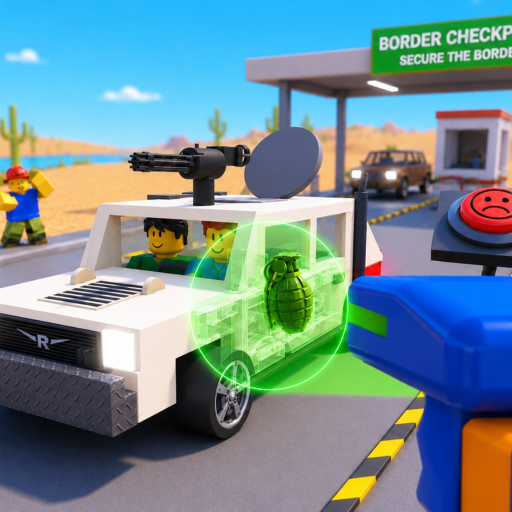
Secure the Border Checkpoint Controls: Inspection Workflow
Use Secure the Border checkpoint controls to map live prompts, practice a repeatable vehicle inspection, and troubleshoot PC, mobile, tablet, or console inputs.
Secure the Border checkpoint controls matter because every document, scan, and vehicle search begins with an interaction prompt. The safest starting point is to map the actions shown by your current client before traffic and difficulty make a missed input harder to diagnose.
Evidence note: The official page confirms PC, Mobile, Tablet, and Console support plus the major inspection interactions, but it does not publish a complete current key, button, or touch-control map.
This archived gameplay gives you visual context for the checkpoint pace. Use it to recognize where interactions happen, then rely on the labels shown in your live client for the actual input.
Open the official Secure the Border Roblox experience to verify the current title, description, and live prompts.
Map the current prompt before processing traffic
Join a server and approach each station without rushing a decision. Record the visible prompt, the device you are using, and the state required for the action to appear. Do not assign a keyboard key to console or mobile simply because another Roblox experience uses it.
| Checkpoint task | Confirmed interaction | What to record live | Safe test |
|---|---|---|---|
| Approach vehicle | Move around the checkpoint | Movement, camera, and interaction labels | Walk to one station and confirm the prompt appears |
| Review driver | Check driver documents | Open, close, compare, and decision prompts | Open one document and return without guessing a mismatch |
| Scan vehicle | X-ray vehicles | Start, view, close, and follow-up prompts | Run one scan and note the exact visual feedback |
| Search vehicle | Search trunks and engines | Open, inspect, collect, or close prompts shown live | Test trunk and engine as separate actions |
| Resolve inspection | Use the current game decision interface | Available outcomes and confirmation step | Read the interface result before starting another car |
Write labels exactly as displayed. A useful note looks like “Console — engine interaction appears after standing beside the front panel,” not “press the usual Roblox button.” The first note can be checked later; the second turns an assumption into a fake control.
Build one clean inspection pass
Once the prompt map is complete, use the same order for several vehicles. Consistency makes it easier to tell whether a missed step came from positioning, a hidden prompt, the current vehicle state, or a changing difficulty condition.
- Stop at a stable viewing position and identify the available prompts.
- Open the driver documents and read every visible field before closing them.
- Run the X-ray and record what the interface actually highlights.
- Search the trunk and engine as separate areas when the current client allows it.
- Compare the observations, use the live decision controls, and read the result.
- Return to the starting position before accepting the next vehicle.
The official description confirms bribes, smugglers, and raiders, but it does not publish a universal control response for those situations. Treat any special prompt as a new live action to record. Do not fold it into the normal vehicle sequence until you know what the current interface is asking.
Troubleshoot inputs by isolating one cause
When an interaction fails, avoid pressing every input. Check position first, then camera aim, current station, visible prompt, and device binding. If the prompt is absent, moving closer or approaching the correct side may be more useful than changing settings. If the prompt appears but the action does not trigger, test the binding once in a low-pressure moment.
For PC, record the displayed keyboard or mouse label. For Mobile and Tablet, note the touch-control position and whether another panel covers it. For Console, note the displayed button and whether focus is trapped in a menu. The official platform list confirms support, not identical layouts.
Use the best settings guide if prompts are hard to read or camera movement makes the station difficult to target. Rejoin only after you have recorded the failure conditions; a reproducible note is more useful than “controls are broken.”
Keep the routine stable as the shift gets harder
The official page says the game becomes harder the longer you survive. It does not provide a numeric scaling formula, timer, or exact event schedule. Your response should be procedural: shorten unnecessary movement, keep the same evidence order, and avoid letting urgency turn an unclear observation into a verdict.
If a new threat or special event interrupts the lane, protect control of the current task first. Note the state you were in, read the new live prompt, and complete or safely abandon the action according to the interface. After the event, return to the same starting position and recheck which inspection steps remain.
The goal is not maximum button speed. It is a sequence you can repeat on the current platform while still reading the evidence. Exact bindings may change during Alpha; the inspection order is easier to repair because each step has a clear purpose.
Before the next vehicle, confirm these basics:
- The current prompt matches the station you intend to use.
- The previous panel or compartment is closed.
- Document, scan, trunk, and engine notes remain separate.
- The live decision response is recorded before you reset.
Frequently asked questions
What are the Secure the Border checkpoint controls on Xbox?
No reliable complete Xbox button map was available in the evidence packet. Open the current console client, approach each station, and record the button labels shown for documents, X-rays, trunk searches, engine searches, and decisions.
Does Secure the Border use the same controls on every platform?
The official description lists PC, Mobile, Tablet, and Console, but it does not say their layouts are identical. Use the live prompt on the device you are currently playing.
Why does an interaction prompt not appear?
Check your position, camera aim, current vehicle state, and whether another panel is open. If the conditions are repeatable and the prompt remains missing, capture the device and station details before rejoining or reporting the issue.
Should I memorize exact keys from a video?
No. A dated video can show the checkpoint context, but the current live prompt is the safer control reference during an Alpha build.